Driver App 4.0 :: User Guide (June 2026)
Print
Created by: Adam Morrison
Modified on: Fri, Jun 26, 2026 at 12:04 PM
FT Driver App — Driver Guide
Version 4.0 — Updated June 2026
This guide will walk you through everything you need to know to use the FASTTRAK Driver App on your phone. If you ever get stuck, contact your dispatcher or supervisor for help.
| ✅ Downloading the App |
The FASTTRAK Driver App is free to download and is available for both iPhone and Android phones. Follow the steps below for your device.
Note: The latest app is named FT Driver App and will have a prominent blue FT logo.
|  |
| iPhone (App Store) | - Open the App Store on your iPhone.
- Tap the Search icon at the bottom of the screen.
- Type FT Driver App and tap Search.
- Look for the app by FASTTRAK Technologies and tap GET.
- Wait for it to download, then tap OPEN.
|
| | ▶ Android (Google Play) | - Open the Google Play Store on your Android phone.
- Tap the Search bar at the top.
- Type FT Driver App and tap the search icon.
- Look for the app by FASTTRAK Technologies and tap Install.
- Wait for it to download, then tap Open.
|
|
✅ Already installed? Make sure your app is up to date. On iPhone, go to the App Store and tap your profile icon to check for updates. On Android, open Google Play, tap the menu, and choose My apps & games. |
? Need help finding it? You can also ask your dispatcher or supervisor for help locating the app. |
|
| ✅ Setting Up Location on Your Phone |
The app needs permission to use your phone's GPS so dispatch can see where you are while you're On Duty. You'll be asked to allow this the first time you open the app. When the app asks for location permission: - iPhone: Choose "Allow Always". This lets the app track your location even when you switch to another app (like Maps or Messages).
- Android: Choose "Allow Location". Your location will only update when you physically move.
? Tip: If you accidentally said "No" or "Don't Allow" — the easiest fix is to delete the app and reinstall it from the App Store or Google Play. When you open it again, choose "Allow Always." Otherwise, you can go into app settings and enable location details their. |
Every time you go On Duty, the app checks that your location is set up correctly. If something isn't right, you'll see a warning. Your location is only shared with dispatch while you are On Duty — never when you are Off Duty. |
| ✅ Logging In |
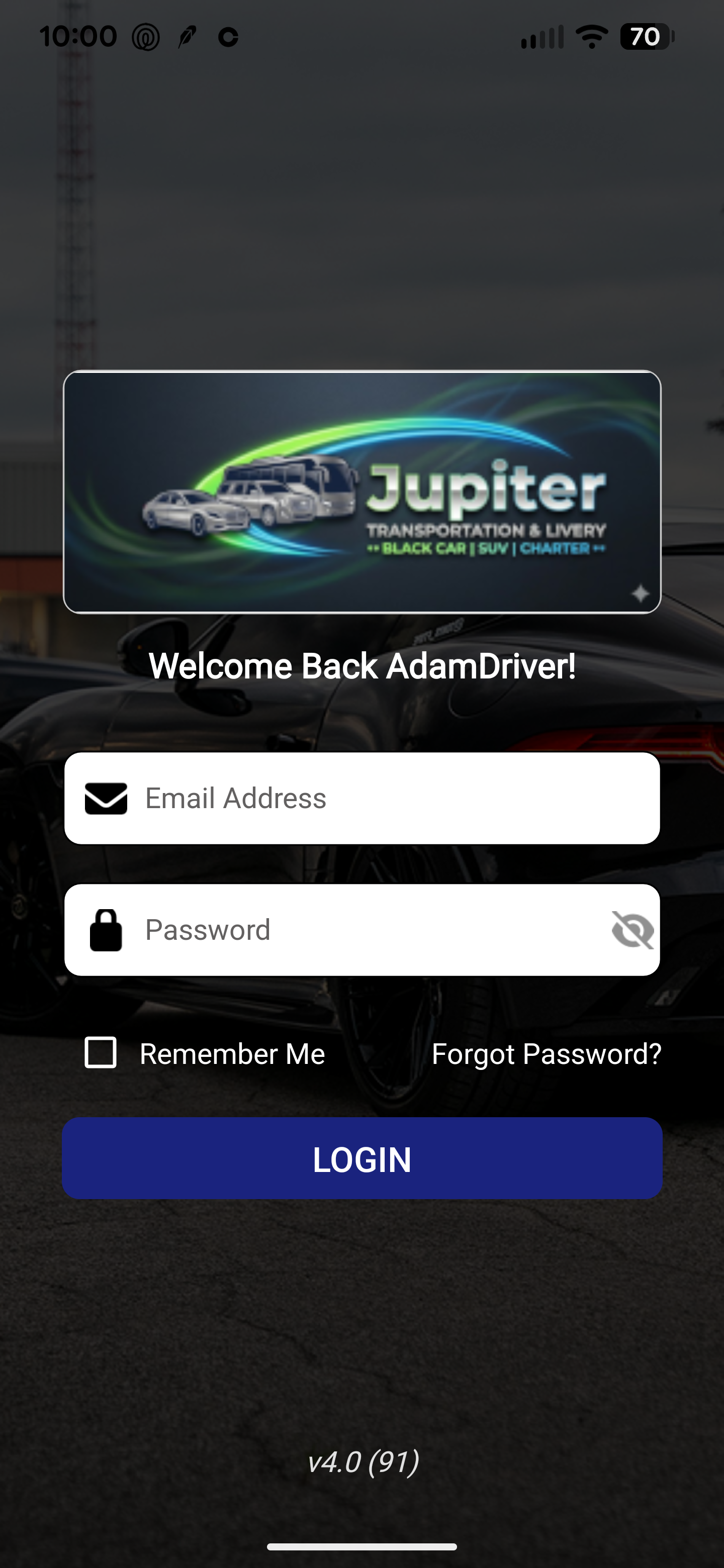 | Your login is the same email address and password you use for FASTTRAK Express.
To log in: - Enter your Email Address.
- Enter your Password.
- Tap LOGIN.
? Tip: Check Remember Me to stay logged in automatically. You won't have to type your password every day. |
Forgot your password? Tap Forgot Password? on the login screen, or ask your supervisor to reset it. Password expired? Passwords must be changed every 90 days. The app will take you to a Change Password screen automatically. |
| ✅ Going On Duty & Off Duty |
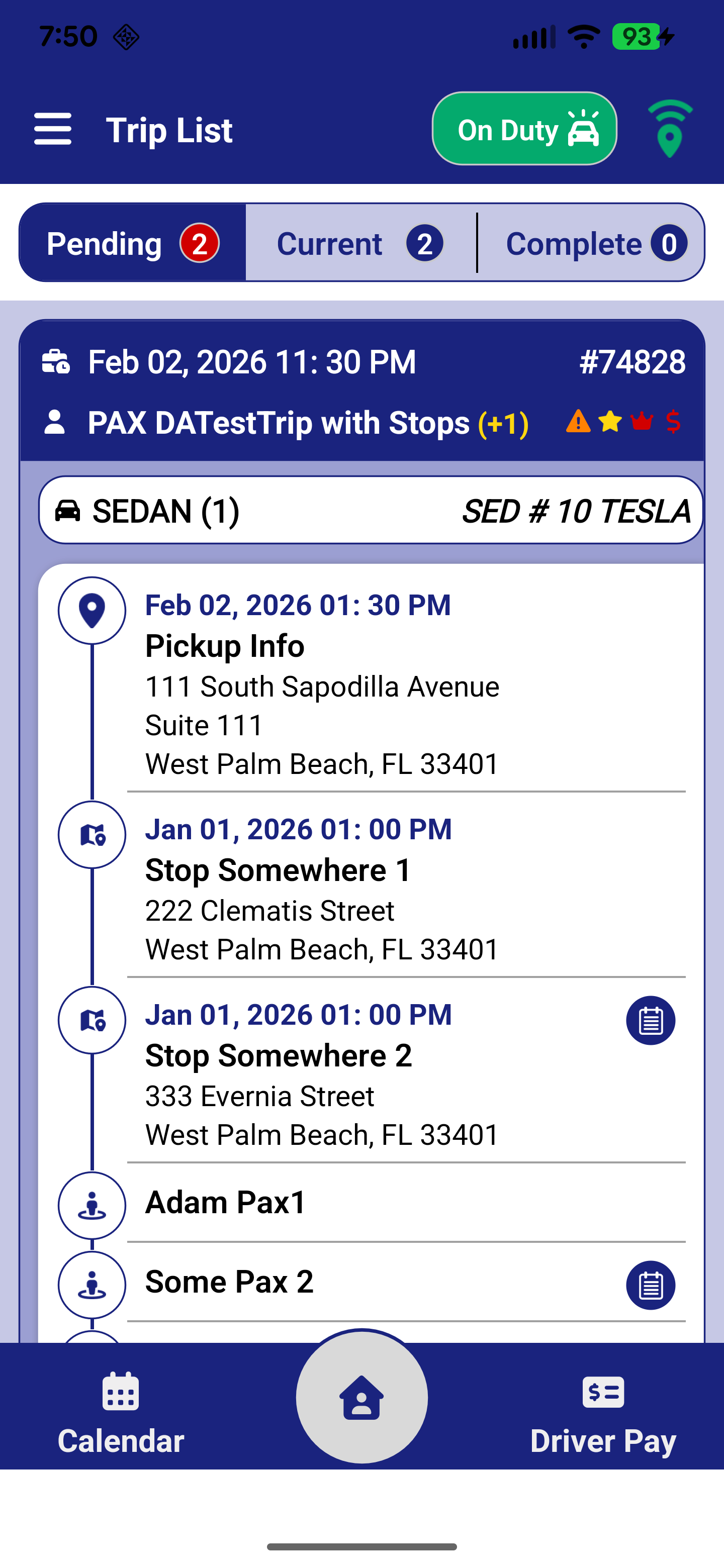 | After logging in, you'll be asked if you want to go On Duty. When you're On Duty, dispatch can see your location on the map.
To go On Duty: Tap the car icon in the top-right corner of the screen and confirm. To go Off Duty: Tap the same car icon again and confirm.
✅ Remember: Always go On Duty at the start of your shift so dispatch knows you're available and can see your location. |
|
| ✅ Your Trip List |
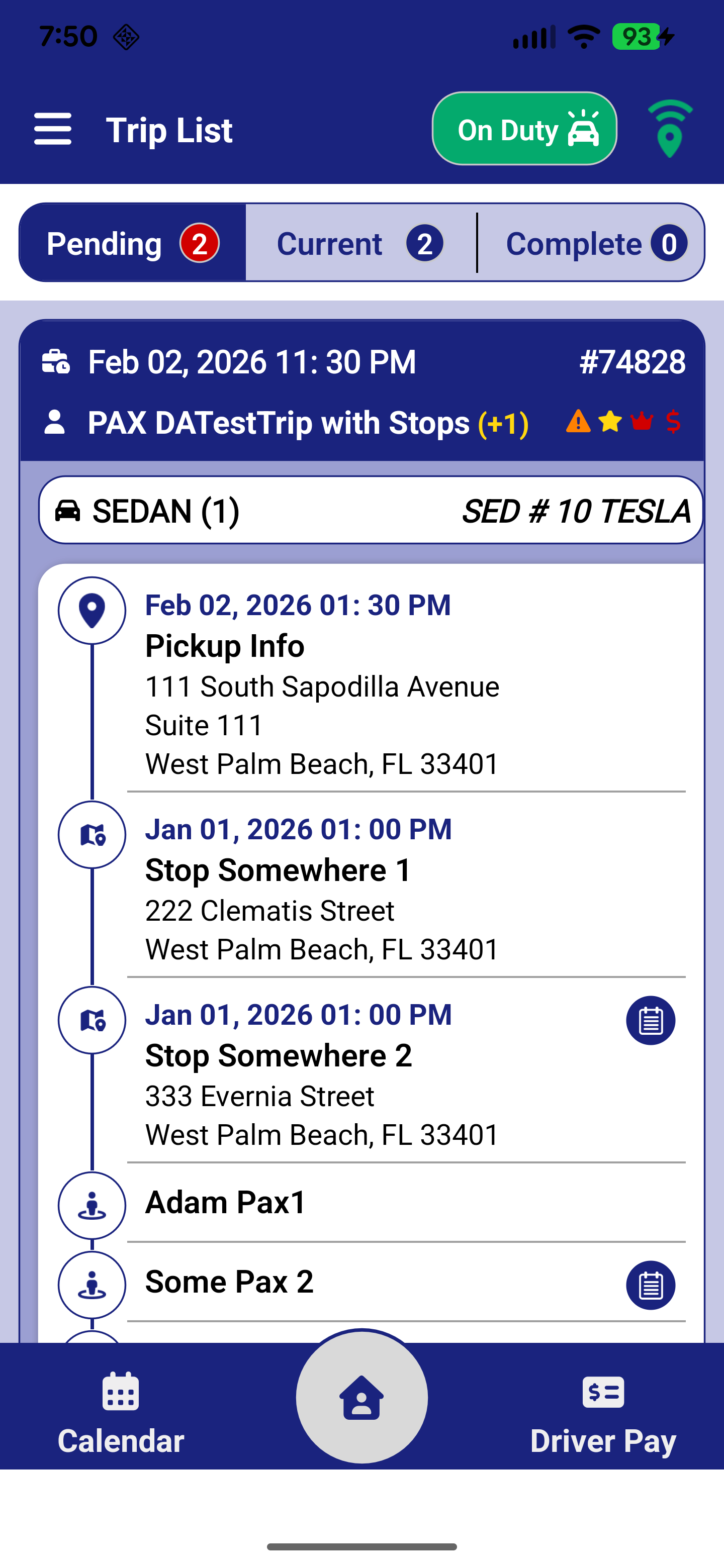 | Your Trip List shows all your jobs. At the top you'll see three tabs: - Pending — New trips waiting for you to accept.
- Current — Trips you've accepted and are working on.
- Complete — Trips you've recently finished.
Each job card shows: - The date, time, and job number
- The passenger's name
- The vehicle type
- Pickup and drop-off addresses
- Any stops along the way
Tap any job to see the full details.
|
| ✅ Accepting or Rejecting a Trip |
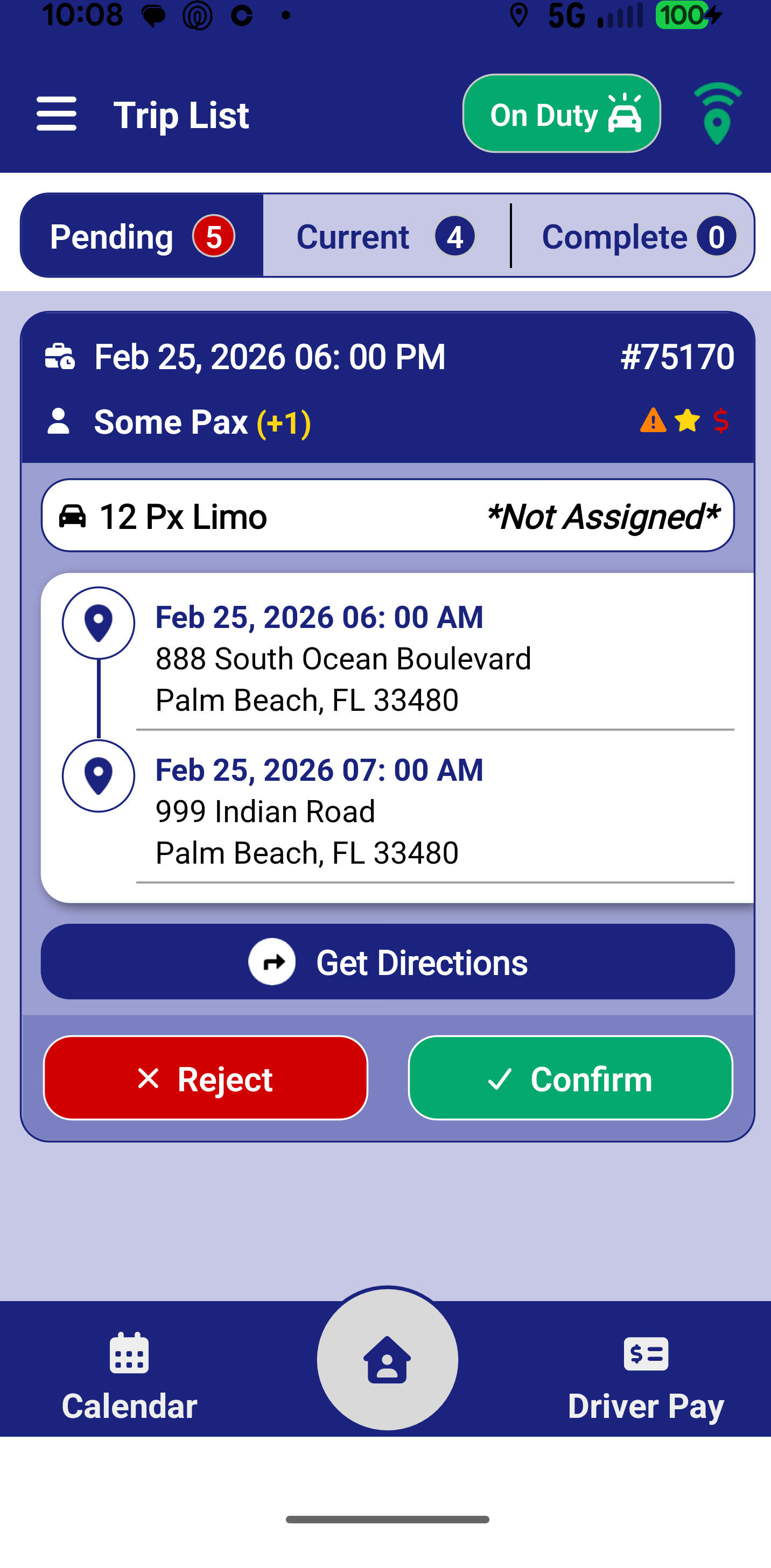 | When dispatch assigns you a trip, it will appear in the Pending tab. You'll see two buttons right on the card: - Confirm (green): Accept the trip. It will move to your Current tab.
- Reject (red): Decline the trip. Your dispatcher will be notified.
Broadcast Jobs: Some operators may also enable broadcast job assignment where a job is broadcast to multiple drivers and drivers can accept the job on a first-come-first-serve basis. This must be enabled by the operator specifically. Once enabled, drivers will see two options for Pending jobs; Assigned and Available.
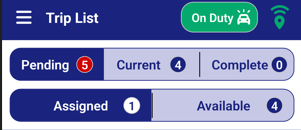
- Assigned: These jobs were specifically assigned to the driver (standard assignment workflow).
- Available: These jobs were assigned to a driver group. The job is not assigned specifically to the driver until the driver accepts the job, at which point it will be removed from all other driver lists.
⚠ Note: The Reject button may not appear for all operators. If you don't see it, contact your dispatcher to make changes to a trip. |
|
| ✅ Updating Your Trip Status |
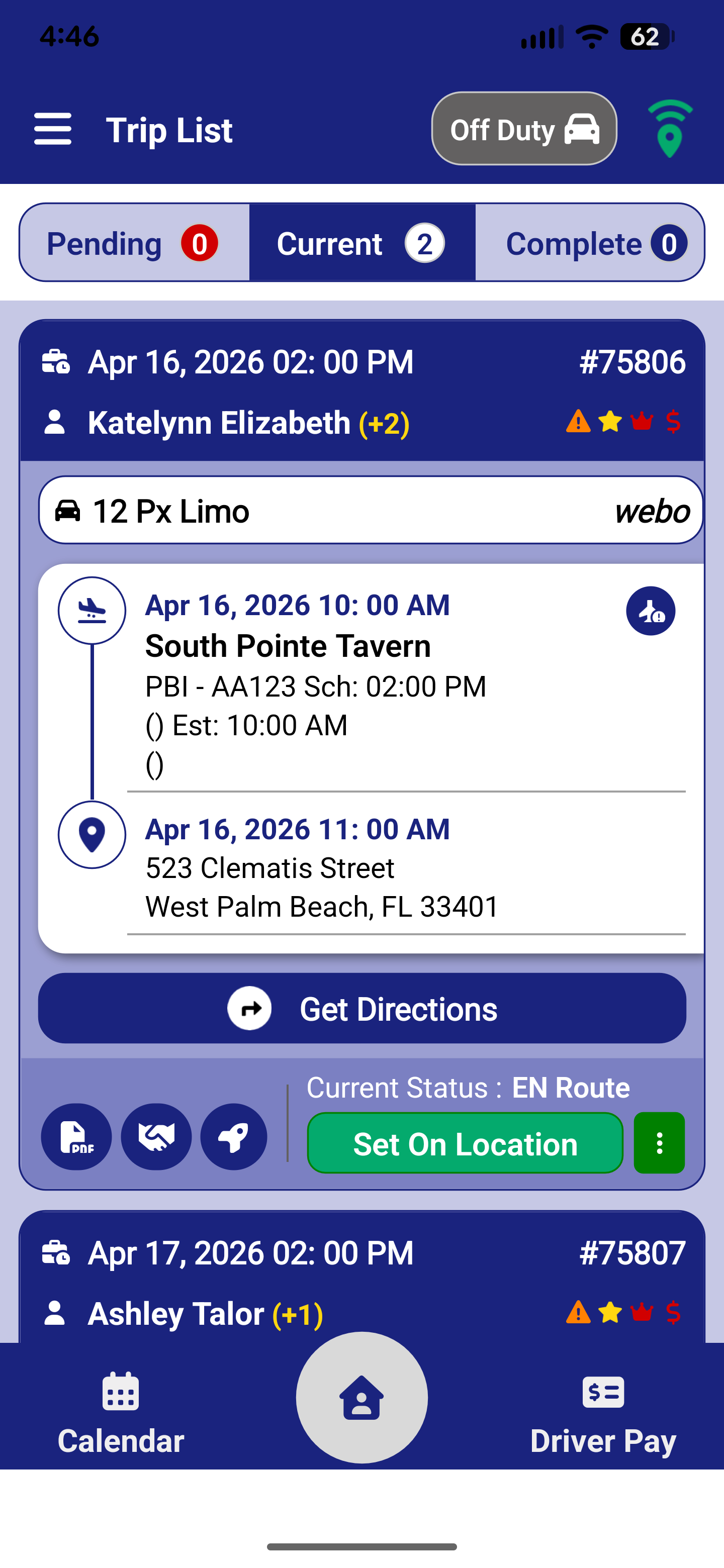 | As you work a trip, keep your status updated so dispatch always knows where you are in the trip. You don't need to open the full trip details to do this.
From the Trip List: - Find the trip in your Current tab.
- Tap the green button (e.g., "Set On Location") to move to the next step.
- Or tap the … button to choose a different status from the list.
Typical trip progression: | En Route | You are driving to pick up the passenger. | | On Location | You have arrived at the pickup location. | | On Board | The passenger is in the vehicle. | | Dropped | You have dropped off the passenger. |
? Tip: Tap Get Directions on any trip card to automatically open Google Maps (or your phone's default map app) with the pickup address ready to go. |
|
| ✅ Trip Details |
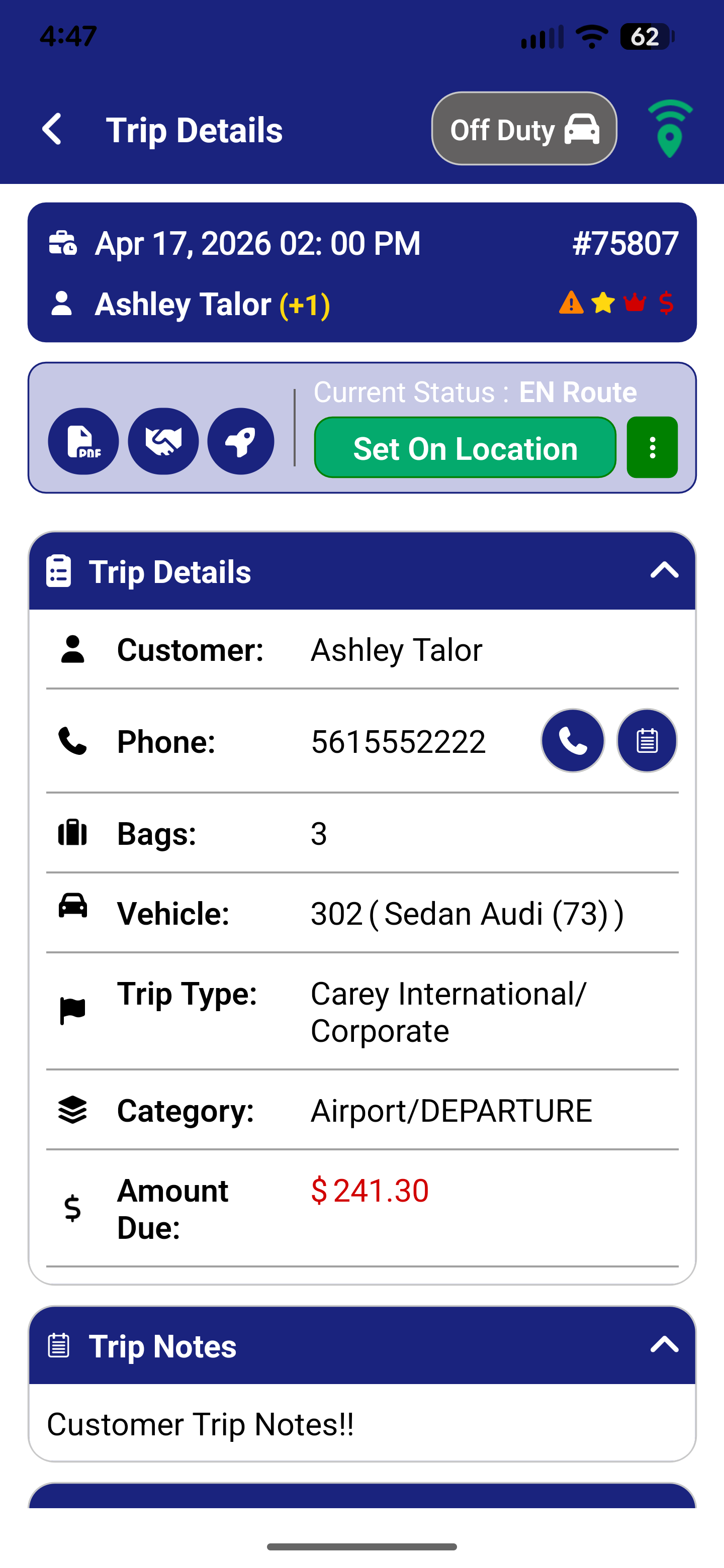 | Tap any trip card to open the full trip details. Here you'll see everything you need to know about the job:
- Customer — who you're picking up
- Phone — tap to call or text the passenger directly
- Bags — how much luggage to expect
- Vehicle — the vehicle assigned to this trip
- Trip Type & Category — the type of service
- Amount Due — if the passenger owes a balance, it's shown here in red
Scroll down to see pickup and drop-off notes, passenger preferences, additional stops, and the closeout section.
|
| ✅ Closing out a Trip |
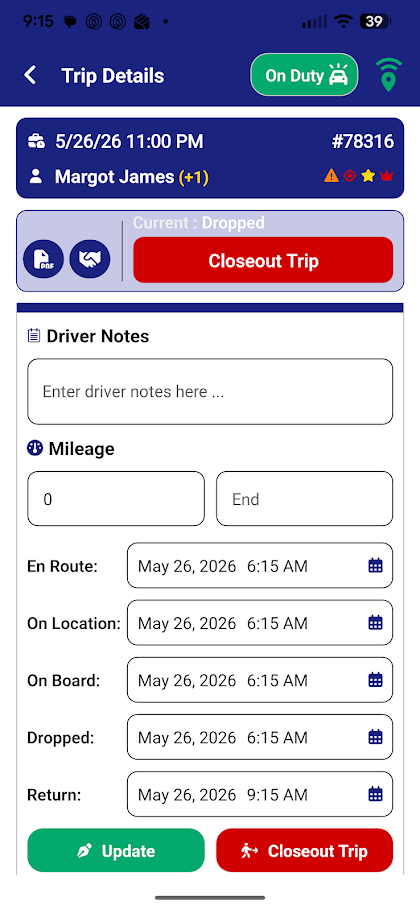 | When your trip is done, scroll down to the Trip Start/Closeout Info section in the Trip Details screen. You can fill this in at any point during the trip — you don't have to wait until it's over.
| Driver Notes | Any notes you want to leave about the trip for dispatch or billing | | Begin / End Mileage | Enter your odometer reading at the start and end of the trip. | | Trip Timestamps | Tap to set the time you returned to base (if enabled by operator). |
New Closeout Workflow: The Update button simply updates details into the trip, but you can still make changes. Use this if you need to update details while the trip is in process. 
When you are completely done updating the trip closeout information, click the Closeout Trip button to submit final changes and mark it as Driver Completed in billing. This will remove the trip from your completed view and no other updates will be allowed. 
|
|
| ✅ Adding Trip Charges |
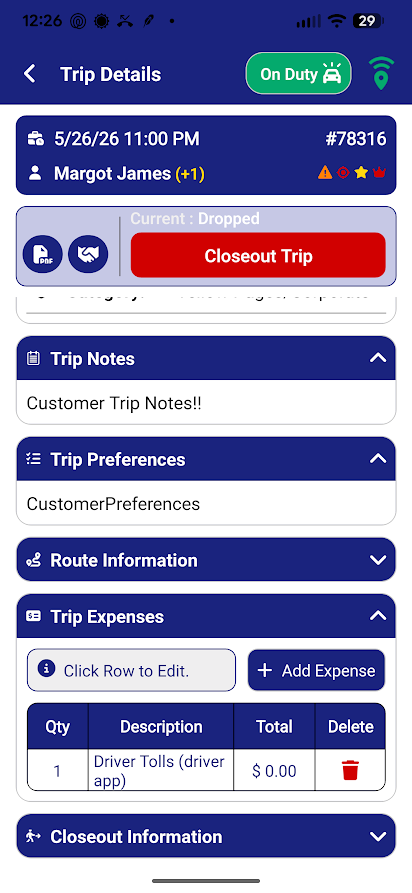 | If your company allows it, you can add extra charges (like tolls or parking) to a trip directly from the app. - Open the Trip Details screen and scroll to Trip Expenses.
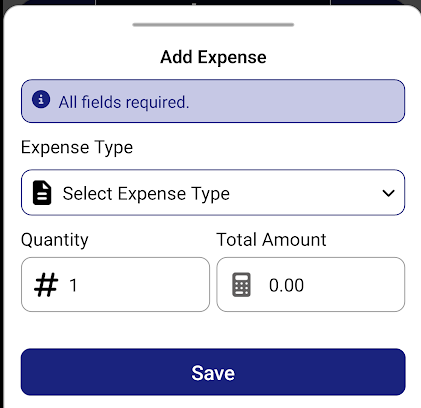
- Tap the + button to add a charge.
- Select the charge type from the list and update required details.
- Tap the save icon to apply it.
To remove a charge, tap the delete icon next to it.
? Note: This feature is only available if your company has turned it on. If you don't see a Trip Expenses section, your company hasn't enabled it. |
 |
| ✅ Viewing Your Pay |
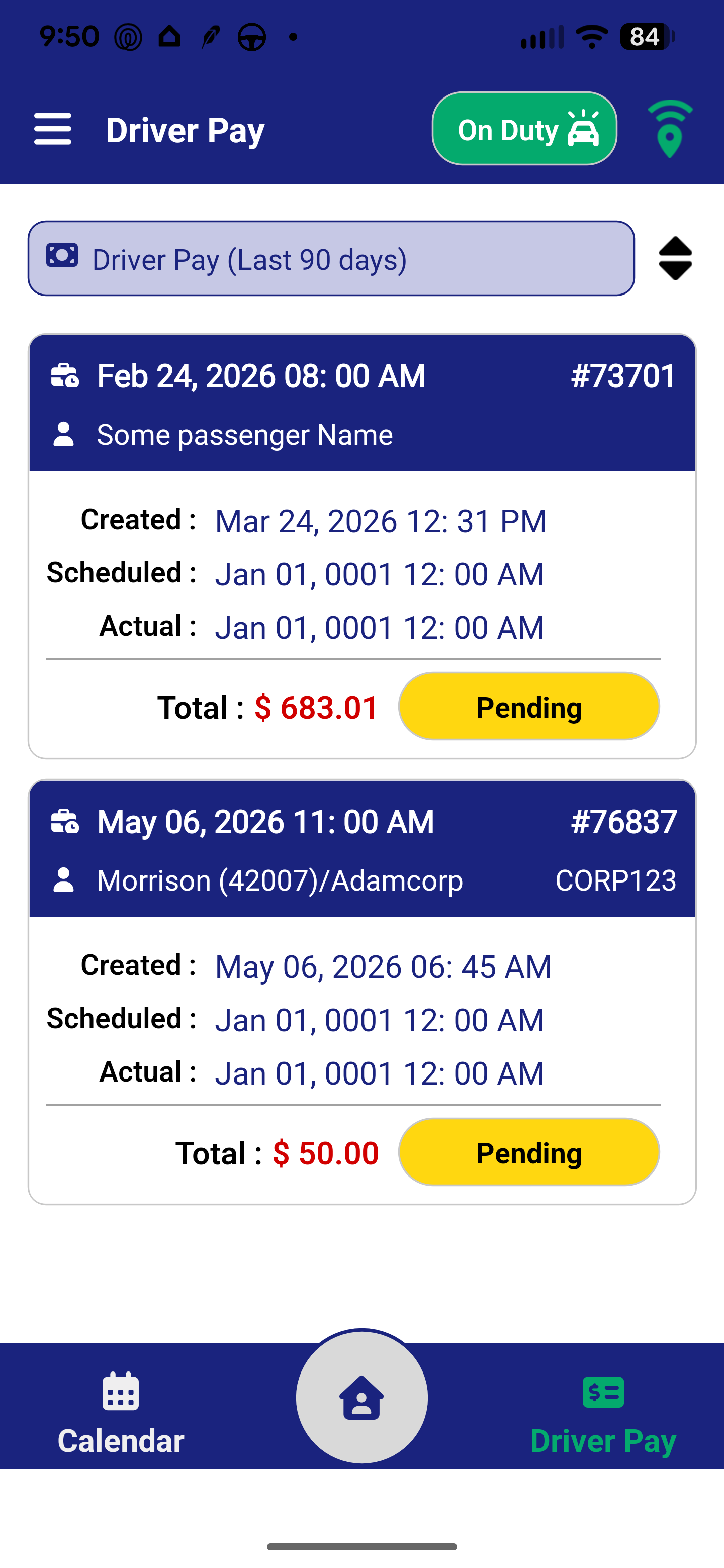 | You can check your payment history right from the app — no need to call the office. The Driver Pay screen shows your last 90 days of pay records.
To view your pay: - Tap the Driver Pay button at the bottom of the screen
- Each row shows the trip date, job number, amount, and payment status.
Note: If you don't see a Driver Pay option, your company may not have this feature turned on. Ask your supervisor. |
|
| ✅ Changing Your Password |
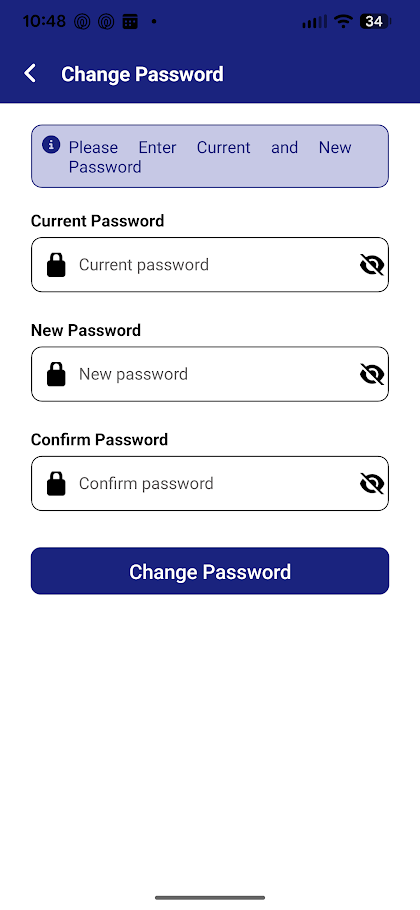 | Passwords expire every 90 days. When yours expires, you'll automatically be taken to the Change Password screen after logging in.
You can also change it any time from the menu. - Tap the ☰ menu icon and choose Change Password.
- Enter your current password.
- Enter your new password and confirm it.
- Tap Save.
|
| ✅ Driver App Settings |
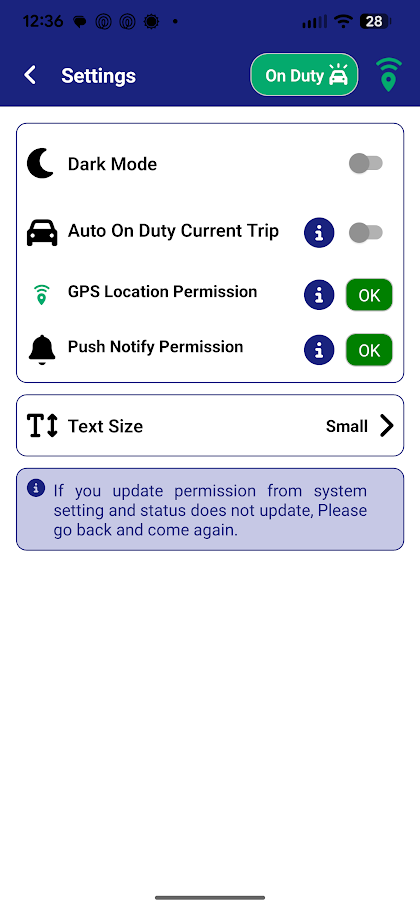 | Various settings are available to tailor you app experience.
- Tap the ☰ menu icon.
- Tap Settings.
- You'll see multiple settings that can be adjusted.
- Additionally, the GPS and Push Notify setting will confirm whether you permissions are setup correctly. If they are read, click the button to run the permission setup for your device.
| Dark Mode | Allows UI display in light or dark mode | | Auto On Duty Current Trip | If enabled, Auto On Duty will notify you of an active trip on login, automatically set you to On Duty in the app, and open the current trips list showing the active trip. | | GPS Location Permission | Shows status of GPS location setup on your device. | | Push Notify Permission | Shows status of Push Notification setup on your device. | | Text Size | Allows you to adjust the slider and impact text display within the app. |
|
| ✅ Need Help? Finding Your App Version |
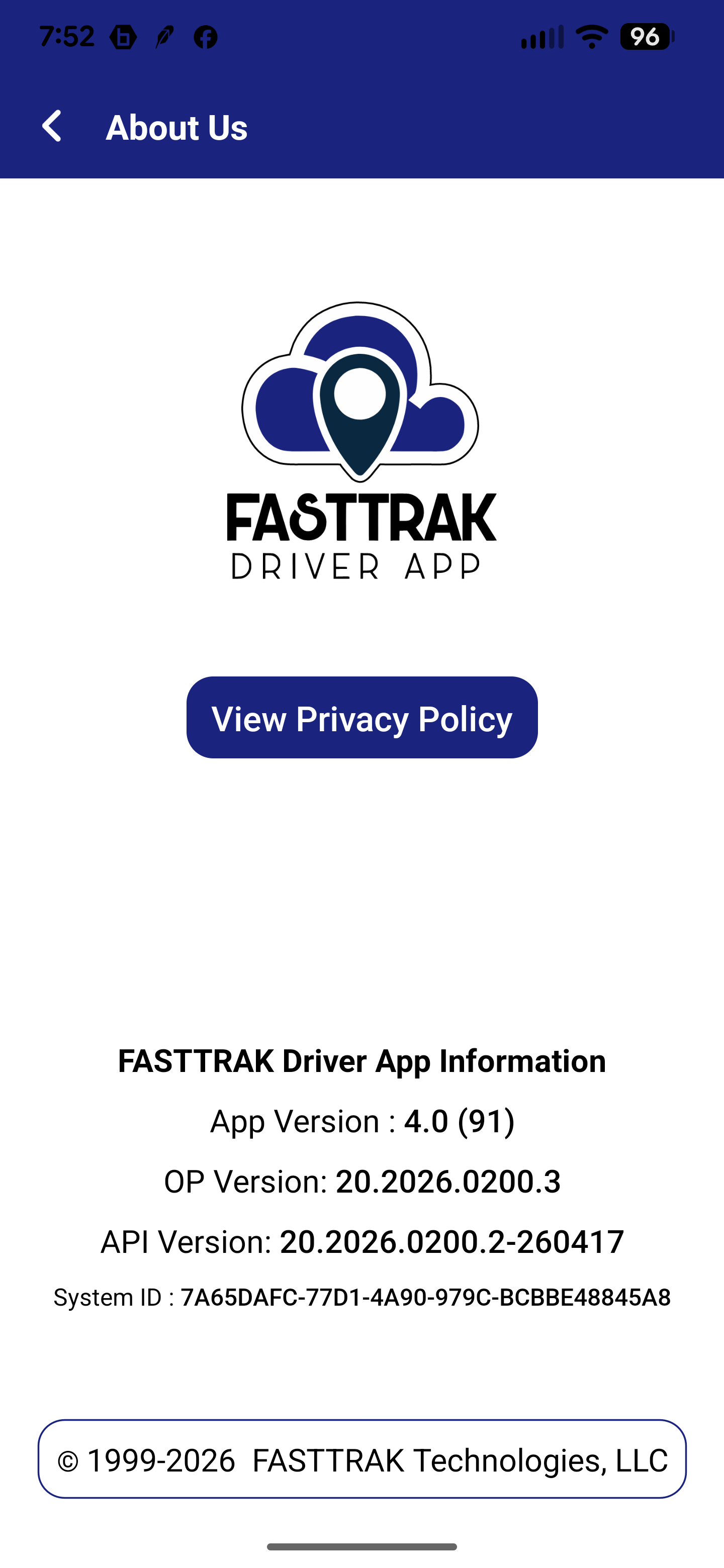 | If you contact FASTTRAK support, they may ask for your app version number. Here's how to find it (2 places):
- Tap the ☰ menu icon.
- Tap About.
- You'll see your App Version, along with other information the support team may need.
Additionally, the version is shown in grey text from the login screen.

You can also tap View Privacy Policy from this screen to read the app's privacy statement. |
| ⚡ Quick Tips |
| ⚡ | Always go On Duty when you start your shift so dispatch can see your location and send you trips.
| | ⚡ | Check Remember Me on the login screen to avoid typing your password every day. | | ⚡ | Update your trip status as you go — En Route, On Location, On Board, Dropped. This keeps dispatch and your passengers informed in real time. | | ⚡ | Tap Get Directions on any trip card to instantly open navigation to the pickup address. | | ⚡ | If the app is acting up, try logging out and back in. If that doesn't fix it, try completely closing the app (throw it away) and restart it. Lastly, if still having trouble, delete/uninstall and reinstall the app. | | ⚡ | Low GPS signal? Make sure your phone's location is set to "Allow Always" for the FASTTRAK Driver App in your phone settings. |
|
Adam is the author of this solution article.
Did you find it helpful?
Yes
No
Send feedback Sorry we couldn't be helpful. Help us improve this article with your feedback.