
FASTTRAK Driver App v4.0 — What's New & Changed
Updated June2026
DriverApp v4.0 is a full redesign of the FASTTRAK mobile driver experience. The app features a new look and feel throughout, improved navigation, new screens and features, and updated administrator configuration settings. This document summarizes what changed from the previous version.
Redesigned Screens
New Login Design
The login screen now displays the operator's company logo prominently and greets returning drivers by name. The Username field has been replaced with an Email Address field, and the app version is shown at the bottom of the screen. Additionally, users can view the entered password (via eye icon) to ensure it was entered correctly.
| Previous Version | Version 4.0 |
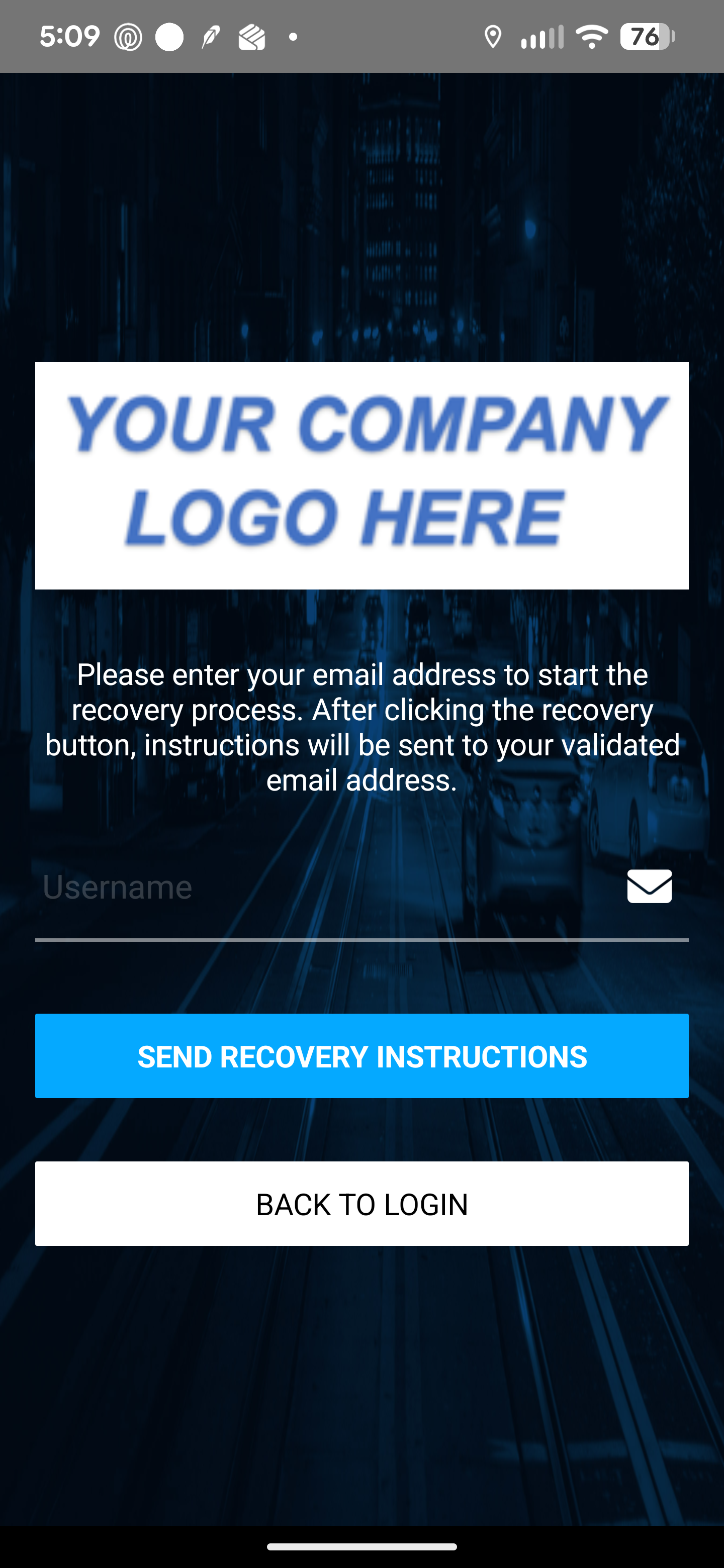 | 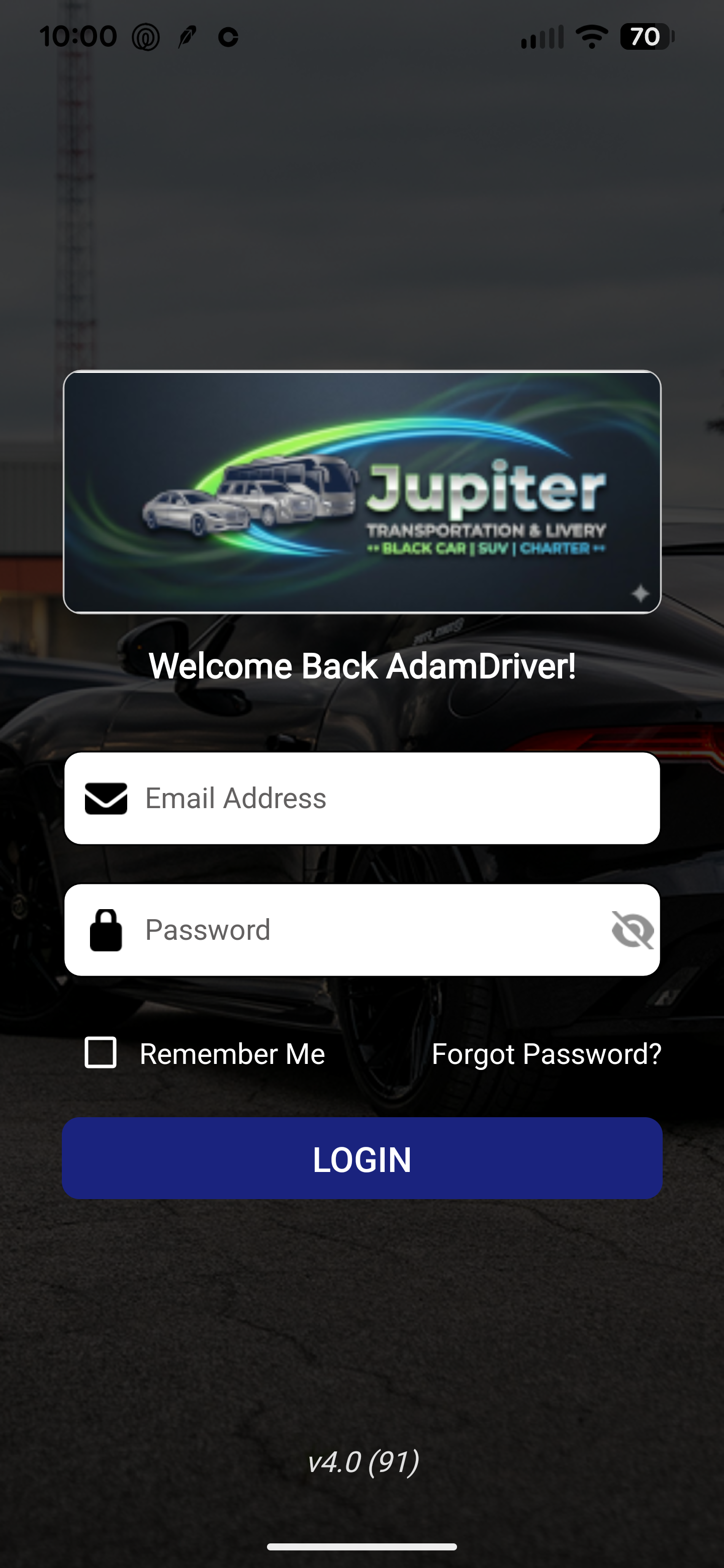 |
New Trip List Design
The Trip List has been completely redesigned with a light theme and a tabbed layout showing Pending, Current, and Complete trips with live counts. Trips are displayed as cards with a vertical stop timeline, vehicle info, and inline action buttons. A persistent bottom navigation bar gives quick access to Calendar, Home, and Driver Pay from every screen.
Pending: Trips require confirmation by driver
Current: Confirmed trips awaiting start and current trips.
Complete: Trips that have been dropped and are awaiting closeout information (within configured time limit)
| Previous Version | Version 4.0 |
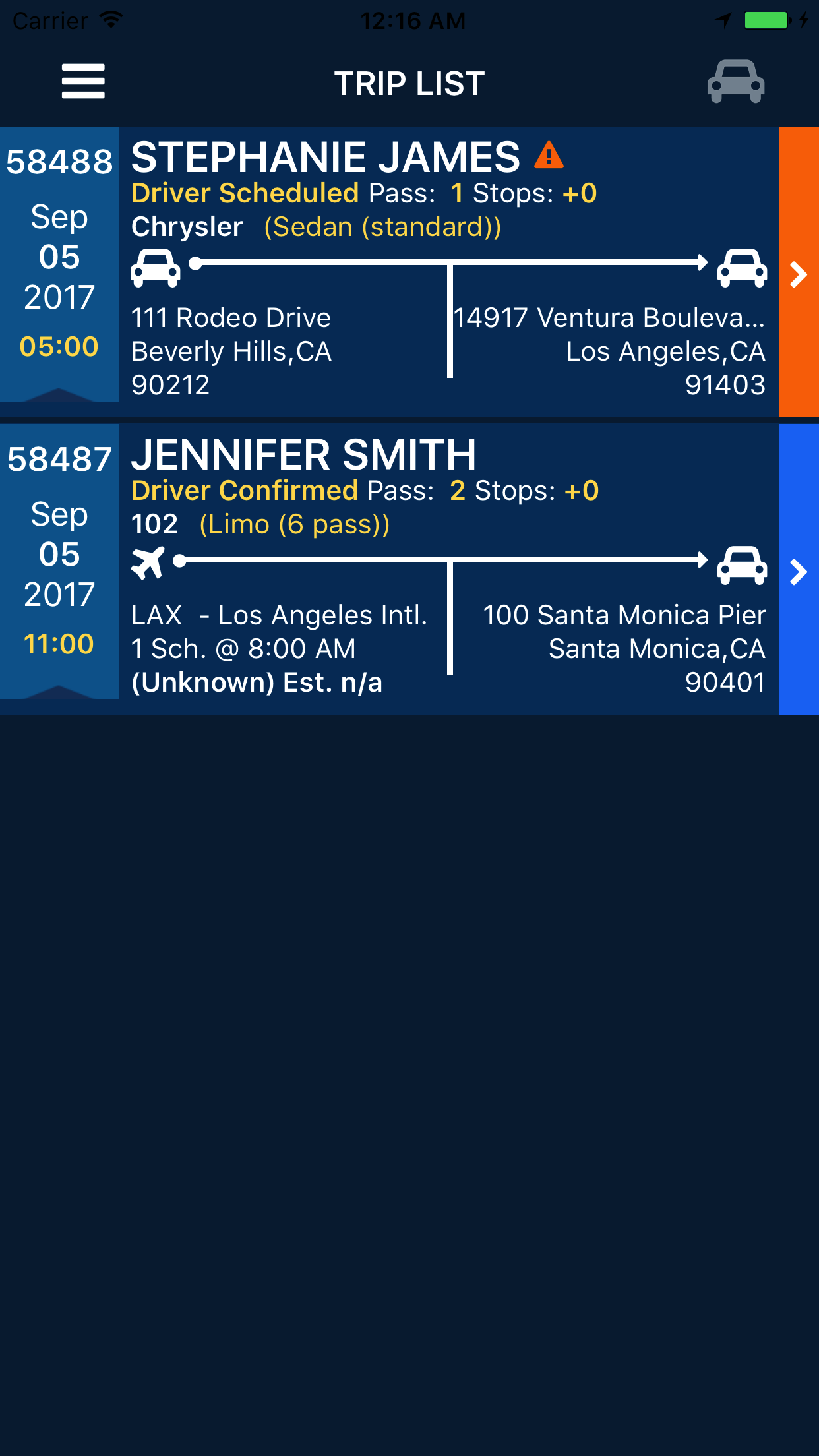 | 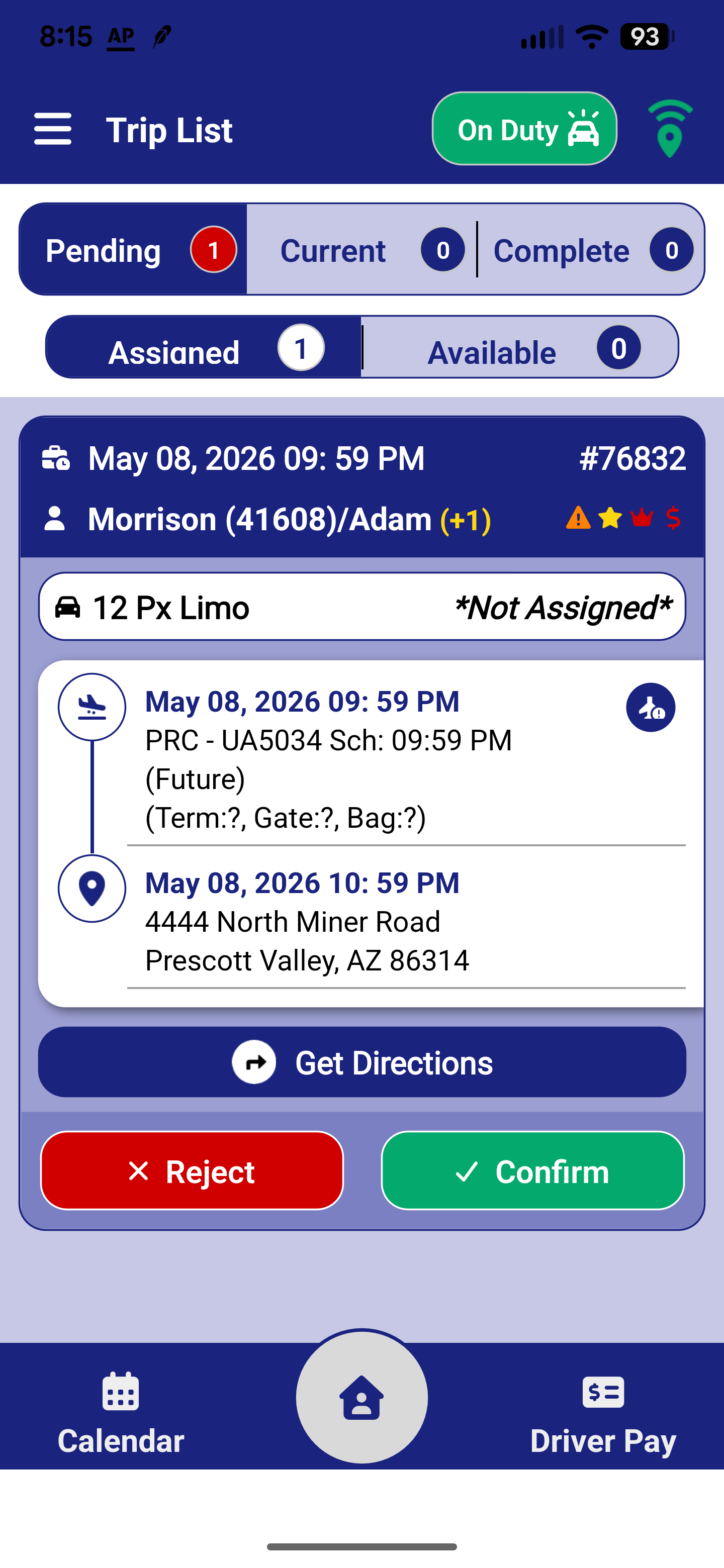 |
Pending Trips: Assigned & Available Trip Tabs
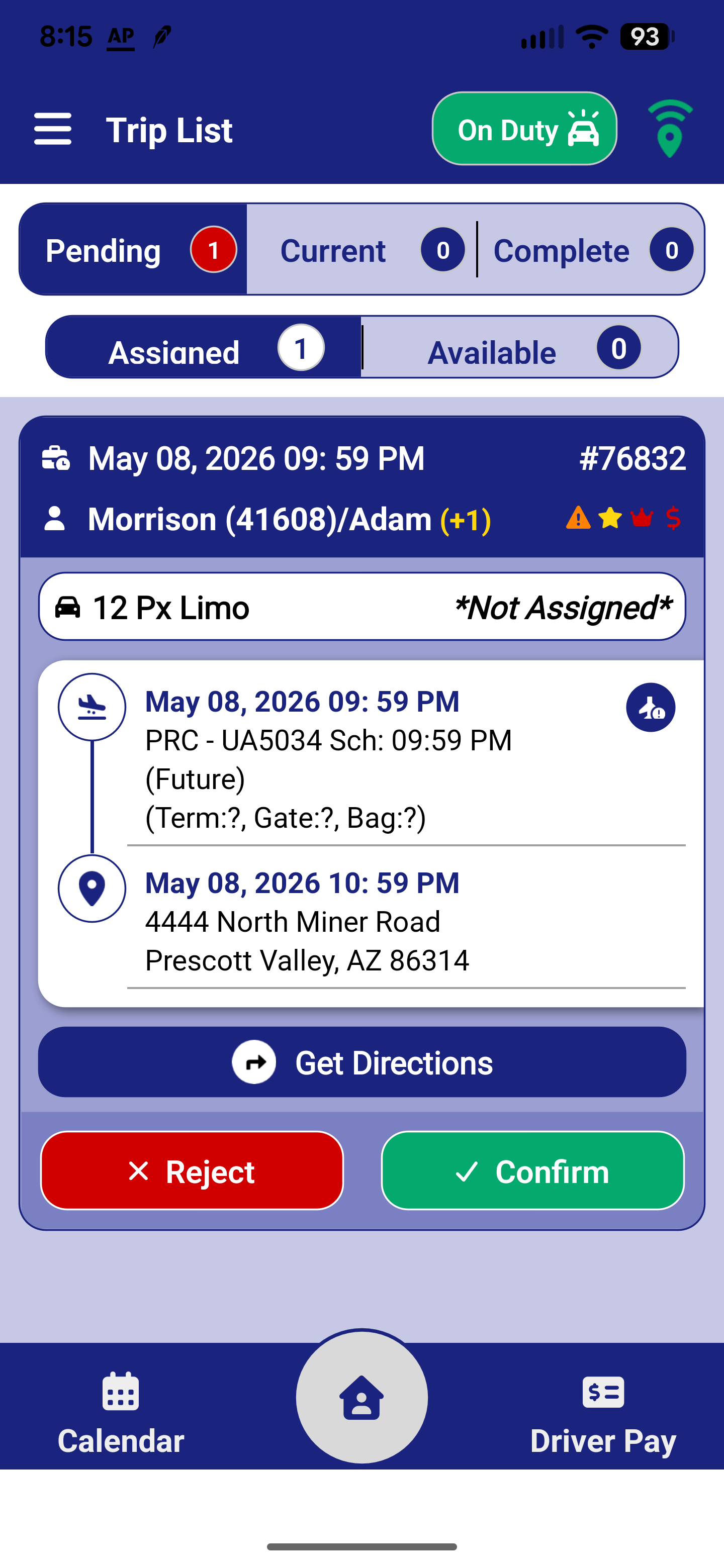 | The Pending tab now splits trips into two sub-tabs:
Reject and Confirm buttons now appear directly on each pending trip card, so drivers no longer need to open the trip detail to acknowledge an assignment. Note: The ability to reject trips must be enabled in Driver App configuration by the operator. |
Trip Legend
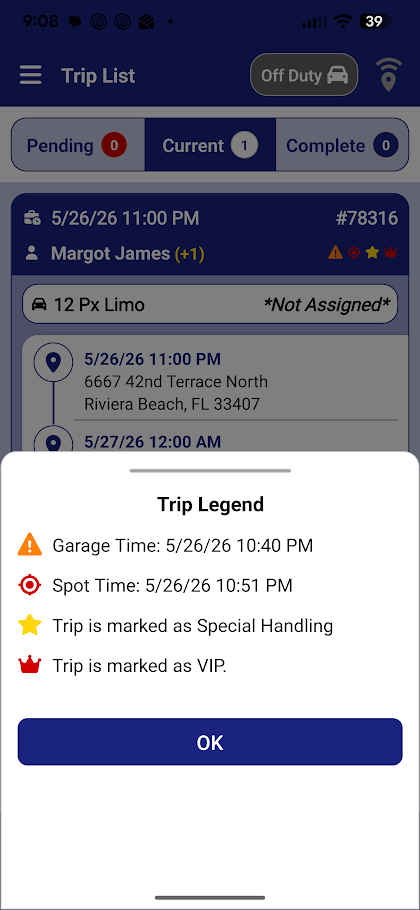 | A new Trip Legend popup lets drivers tap an icon on the Trip List to see a plain-language explanation of all trip status icons — eliminating the need to memorize their meanings.
|
New Trip Detail Design
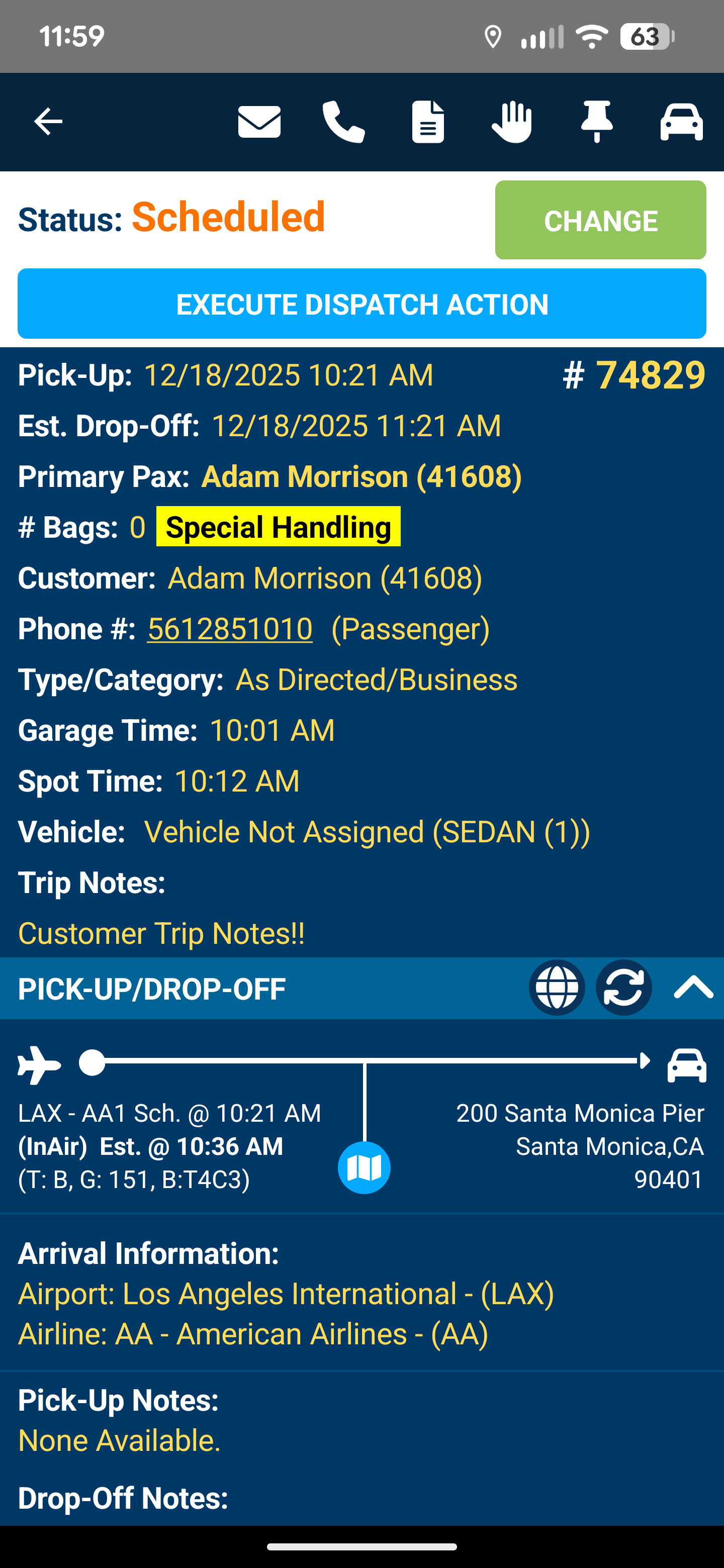
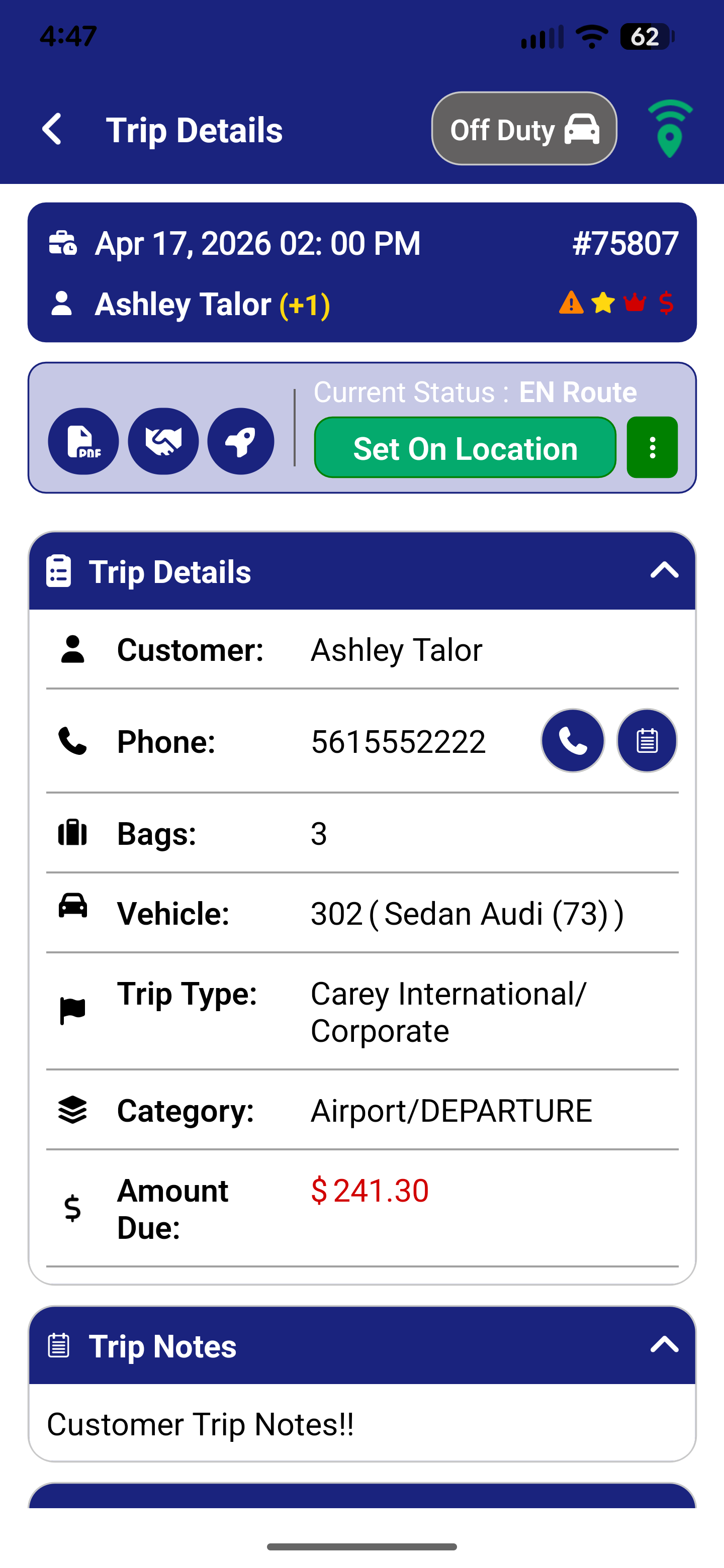
Trip Detail has been redesigned with a clean, structured field layout. Key trip attributes — Customer, Phone, Bags, Vehicle, Trip Type, Category, and Amount Due — are shown as clearly labeled rows. The current status and action button are displayed inline at the top of the screen.
| Previous Version | Version 4.0 |
 |  |
New Closeout Workflow
A new closeout workflow has been added to allow drivers to "Closeout" trips when they are done adding closeout details.
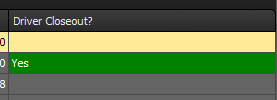
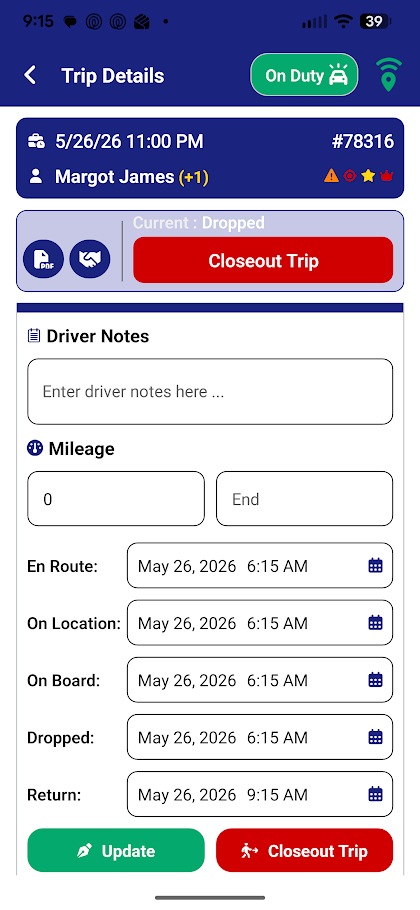 | Dropped trips will show under the Completed list of trips. The list will also include a Closeout Trip button which takes the driver to the Trip Details page, closeout section of the trip. Drivers have the opportunity to update notes, mileage, expenses (if enabled) and timestamps (if enabled) before closeting out the trip. Previously, the trip stayed in the drivers trip list up until the limit configured by the operator. This workflow continues to be supported via the "Update" option. Driver entered closeout details are saved to the dispatch view when the drive clicks Update. New: Drivers now have the option to "Closeout Trip" from the details page. This action marks the trip as "Closed Out" by the driver and the trip is removed from the drivers completed view entirely. This action sets a flag in the FASTTRAK system and is shown in the Billing/Finalize view as a column, specifying that the driver has closed out the trip and billing/finalize can commence. From Ultimate Finalize/Billing
|
Bottom Navigation Bar
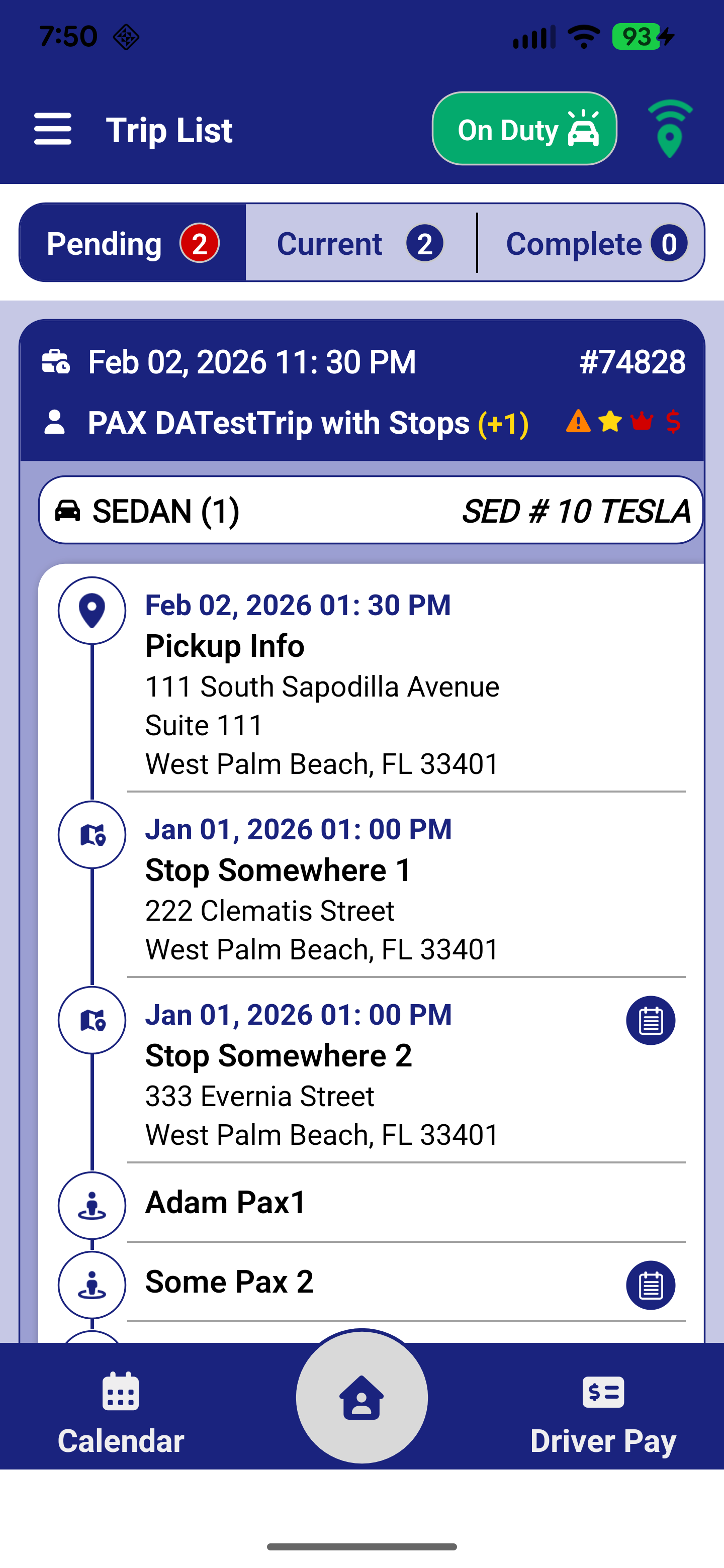 | A persistent bottom navigation bar is now present on all main screens. It provides one-tap access to three areas:
The bottom bar replaces the hamburger menu as the primary navigation method for these core features. |
New Driver Pay Design
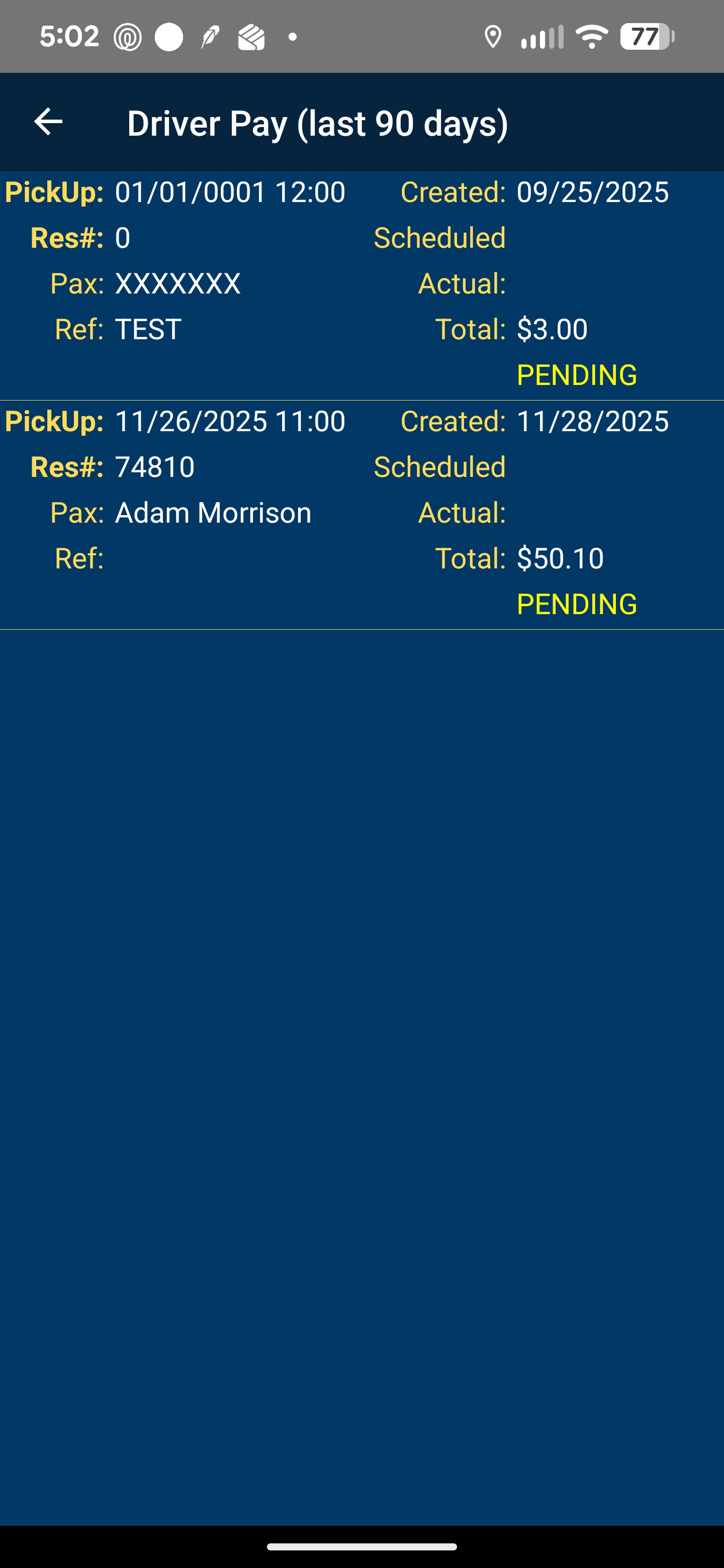
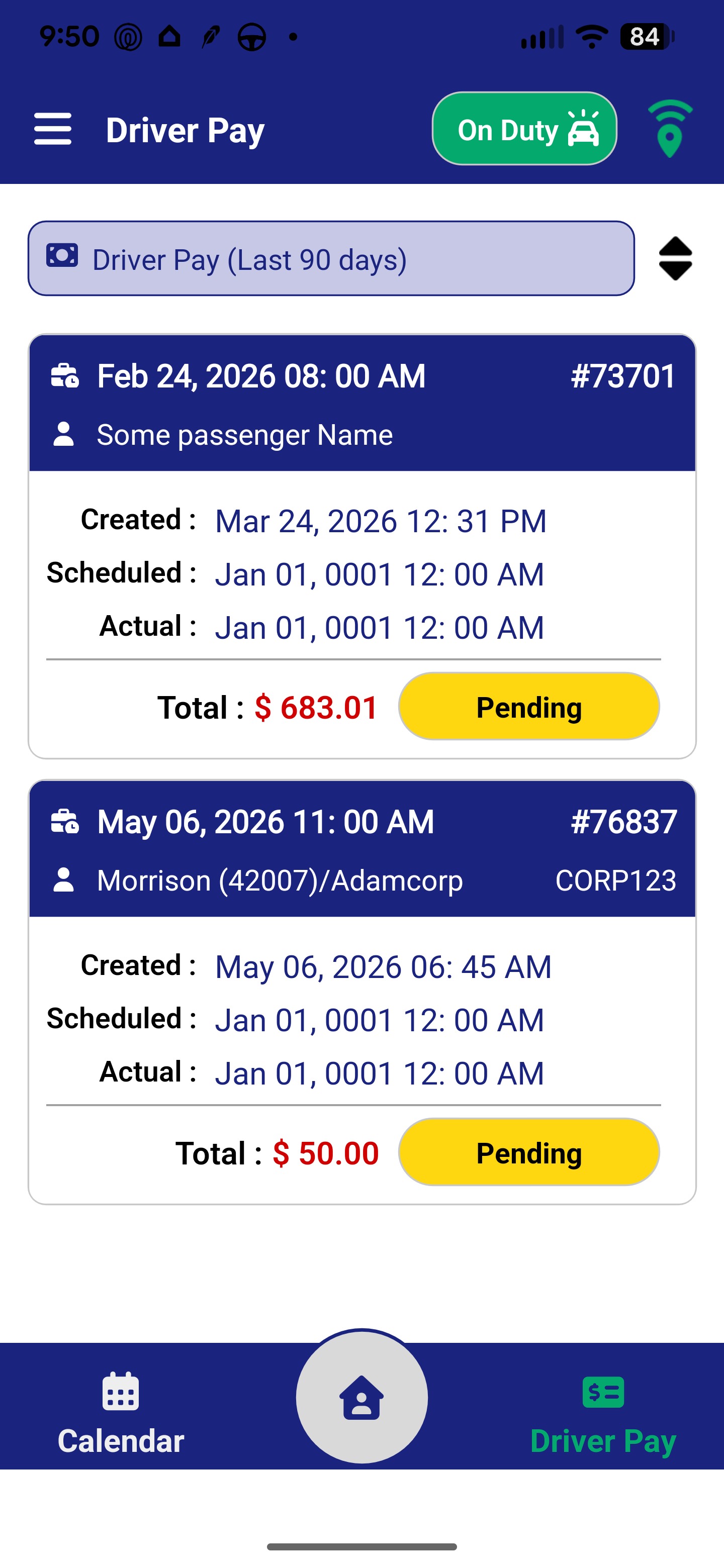
Driver Pay has been updated to a card-based layout showing Created, Scheduled, and Actual dates alongside a payment status. It is now directly accessible from the bottom navigation bar on every screen.
| Previous Version | Version 4.0 |
 |  |
Configuration Changes
The following settings were added or removed in the Driver App configuration panel. Configuration options are found in FASTTRAK Ultimate under:
Menu → System, Company & User Setup → System Global Settings → Driver Options → FASTTRAK Driver App
| Setting | Status | Notes |
| Enforce Linear Status Updates | NEW | When enabled, drivers must progress through statuses in order and cannot skip steps. |
| Show Booking Source / Category | NEW | Displays the booking source and category on the trip detail screen. |
| Allow Driver to Update Trip Timestamps When Closing Out a Trip | NEW | Enables drivers to adjust actual pick-up and drop-off timestamps during the closeout process. |
| Configure Menu Options | NEW | New button that opens a dedicated screen for customizing available menu actions in the Driver app. This allows an operator to add customized web links directly to the driver app. This is helpful in supporting SOP, training, third-party support sires, etc. |
| Require Drivers to Select a Vehicle | REMOVED | Vehicle selection on login is no longer a configurable requirement in v4.0. |
| Allow Drivers to Unpin a Trip | REMOVED | Trip pinning behavior is now managed through the new Driver Actions configuration. |
Note: All other existing settings are retained in v4.0 with the same behavior as the previous version.